
How to Create a Music Map: A Step-by-Step Walking Route Tutorial
Start with a walk you already know. Choose three places, give each one a few songs and use jeojeo to place that music on the map. This tutorial takes you from a simple station-to-park-to-cafe plan to three saved jeos you can visit and listen to. You do not need a long playlist to begin.
1. Choose three places on a familiar walk
Pick a station or meeting point, a nearby park and a cafe you would like to finish at. Choose an order and a distance that feel comfortable. The places in the table are examples: substitute three stops from your own neighborhood.
Write down a short theme for each stop before opening the app. Starting with two or three songs per place keeps the first attempt manageable. You can choose the same song for different places or give each stop its own mood.
Your three-stop music plan
| Stop | Music idea | What to create |
|---|---|---|
| Station | A few upbeat songs to start walking | A jeo around the meeting point |
| Park | A calmer playlist for a pause | A separate jeo around the park |
| Cafe | Songs you want to hear at the final stop | A third jeo near the cafe |
2. Set up jeojeo before you head out
Download jeojeo here or from the links below, then follow the sign-in prompts.
You can browse first and connect a music service later. To listen, complete the connection offered in your app.
Check location access.
Let the map show where you are and help you discover nearby jeos. Keep a network connection available for listening and playlist discovery.
Edit whenever you need to
Prepare your three-stop plan in advance. If you want to rename a playlist, change a route or add songs along the way, stop somewhere suitable before making adjustments.
3. Create an area for your first stop
On the map, find your first stop by searching or moving the map. Tap the + button at the bottom right to enter drawing mode, then draw the area you want to associate with your station playlist. Review the boundary and undo or restart if needed.
You can also switch from freehand drawing to place-based route planning. For this first exercise, keep each stop as its own recognizable area so you can check its playlist separately. Confirm the area with the check mark to continue to the playlist creation screen.
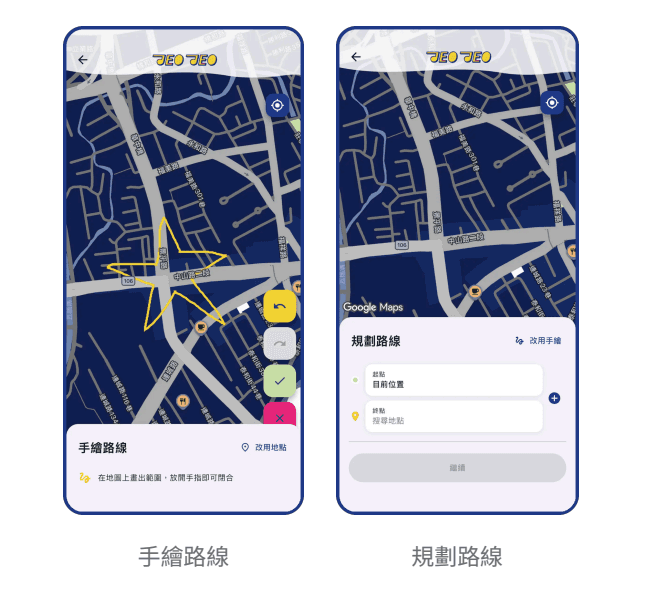
4. Name the jeo and add its music
Give the first jeo a name that tells you where it belongs, such as “Station start”. Search for a song, album or playlist, then select the music you want to add. Check the artist or album when several results have similar names.
Confirm your selections with the check mark and finish saving. Before moving on, check that the new jeo appears in My jeo and contains the music you chose. If you are unsure which songs fit, add a small selection now and adjust it after the walk.

5. Repeat for the park and cafe
Return to the map and repeat the same steps for stop two: find the park, tap +, draw or plan its area, confirm, name it and add music. Then create the cafe jeo in the same way.
You should now have three saved jeos with different names and locations. Compare them with your plan and make sure each one has music. In this tutorial, your walking route is the order in which you choose to visit these areas; creating three jeos does not itself provide walking directions.
If the areas overlap, more than one playlist may be available in the same place. That can be useful, but smaller, distinct areas make the first test easier to understand.
6. Try the walk and choose what to hear
Start at the first stop and check the map for the playlist card. Public jeos can be discovered as you enter their areas. Open the card and choose whether to listen, save the playlist for later or share it.
Continue to the park and cafe, checking the music at each stop. Choosing to listen adds music to the playback queue; crossing an area boundary does not necessarily stop the current song or instantly switch tracks.
If a card does not appear, check your location permission, network connection and whether you are inside the intended area. If the card appears but playback does not work, check the connected music service and its account requirements.
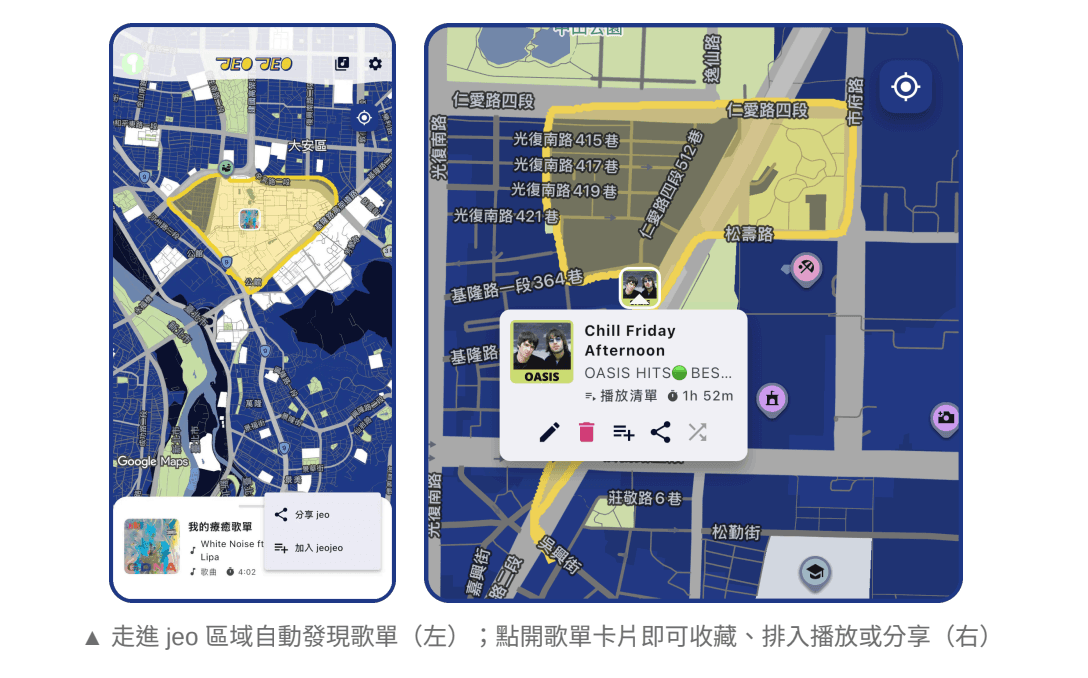
7. Refine the music and check sharing
Tap the music icon at the top right, open My jeo and choose Edit for the playlist you want to change. Adjust the name or music after trying the walk. Use the available edit controls to revise an area that does not match the place you intended.
Lookback is a separate way to revisit your recorded music and movement through its calendar or list. It is private unless you share it. If you do share a Lookback, the recipient can see the route and music included in that share.
Lookback in action
Your first music map: a quick check
You have a starting point, a middle stop and an endpoint; three saved jeos; and music for each place. Try the walk once before expanding it. Change one area or a few songs at a time so you can hear what improves the experience.
Want more context? Read the music-map introduction or the full jeojeo guide in Related reading. Use the official download links below to start on your device.
The steps draw on the September 2026 jeojeo user manual and the current feature guide. Screenshots show the Chinese interface; labels and available music services may differ in your app version. The three-stop walk is a planning example, not a published route or turn-by-turn navigation feature.