
How to Use a Music Map on Android: Connect Spotify and Create Your First Jeo
A familiar street corner can have a song of its own. With jeojeo on Android, you can connect music to real places or discover selections in nearby public playlists. You do not need to plan a whole trip: start with one place you know and one song you would like to hear there.
Before you start: three things to prepare
An Android phone that can install jeojeo
A Spotify account you can sign into
Check your internet connection
This music map connects songs with real geographic places. jeojeo uses Spotify on Android; Apple Music connection is available on iPhone and iPad.

Step 1: Download jeojeo and sign in
Install jeojeo using the Google Play download link below, open it and follow the sign-in prompts. If you want to explore the map first, you can browse and return to Spotify connection later.
Also open Spotify on your Android phone and check which account you want to sign into.
Step 2: Connect Spotify and check your listening setup
Follow the Spotify connection prompts in jeojeo. On Spotify’s authorization screen, check the account and requested access, then return to jeojeo to finish. If you remain in the browser or Spotify, switch back to jeojeo to check whether the connection completed.
Return to jeojeo to use your place-based playlist. Check volume, audio output and Spotify’s playback status.
Step 3: Allow location access and choose a place
When Android asks, allow location access while using the app and check that the phone’s location services are on. Once the map finds you, choose a familiar corner, park or cafe. Keep an internet connection available for playlist discovery and listening.
You do not need to draw a long route. Make your first jeo a clear area around one place so you can tell whether you have entered it when you try listening.
Step 4: Add a song to that place
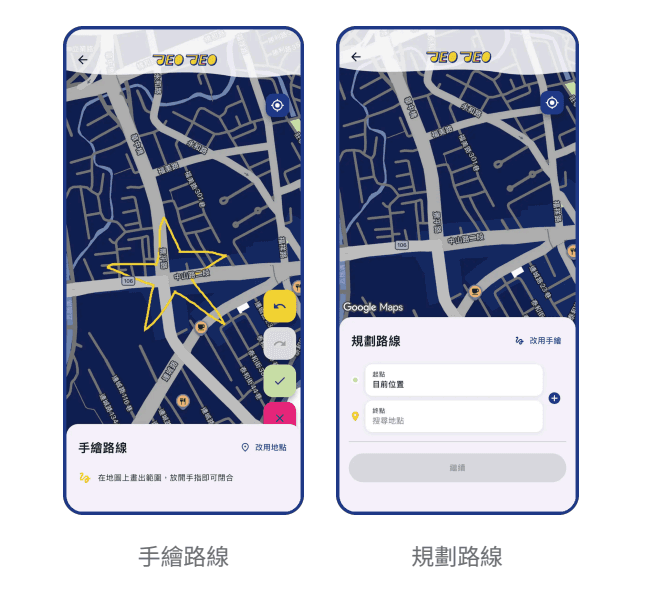
Find the place on the map and tap + at the bottom right to start creating. Draw an area or use place-based planning to set its boundaries, confirm it and name the jeo—for example, “Riverside after work”.
Search for a song, album or playlist, check the artist and contents, then confirm and save. Open My jeo to check its name, location and music. One song is enough for a first attempt; add more after you have tried the place.
Step 5: Visit the place and choose what to hear
Enter the saved area and check the map for its playlist card, then select the music you want to hear. Listening adds music to the playback queue; crossing a boundary does not necessarily stop the current song or instantly change tracks.
Try an upbeat song at a station exit, then another selection by the river. Test the first place before adding the second. You choose how to walk between the stops.
Learn how to play in one minute
Connection or playback trouble: what to check first
Separate a connection problem from a missing playlist or a playlist with no sound. Check one thing at a time rather than repeatedly recreating your jeo.
Spotify connection did not finish
Check that Spotify is signed into the intended account, complete authorization and return to jeojeo. If the app reports a connection failure, note when it happened and your app version, then tap Report a problem to let us know.
I arrived but cannot find the playlist
Check location services, jeojeo’s location permission and your internet connection, then confirm that you are inside the saved area. When exploring another person’s playlist, also check that it is publicly accessible.
I can see the playlist but hear nothing
Try a song in Spotify, check phone volume and Bluetooth output, then return to jeojeo to check the connection and queue. Check your account status and send us a report.
Android music map FAQ
Choose your next step around the device and listening service you use.
Do I need to be there to create a place-based playlist?
No. You can search for a place on the map, set its area and add songs, albums or playlists in advance. Prepare before heading out, then view the playlist and choose what to hear when you arrive. You can also adjust the music to suit the scenery and your mood.
How is this different from a Spotify playlist?
A regular playlist mainly organizes music to listen to. A place-based music map adds a location: explore selections at a street corner or give different travel stops their own music.
Will creating places give me walking directions?
This guide creates music connected to places. You choose the visiting order and walking route; use your preferred navigation app when you need directions.
Give one place a song today
Choose somewhere you will pass today and add one song to it. Linking a place with music gives you another way to experience an everyday route the next time you visit.
For a three-stop walk, continue with the full creation tutorial. To explore selections shared by others, start with nearby music.
This guide focuses on Android and Spotify. Feature images come from jeojeo’s official guide and illustrate playlist creation; interface wording and button placement may differ in your version.